
How to Use DoovoX: A Complete Step-by-Step Guide for Hirers and Workers
Everything you need to know about getting started, requesting services, finding opportunities, and navigating DoovoX.

Getting things done shouldn't be complicated. Whether you're looking for someone to help with a task or you're ready to put your skills to work, DoovoX is designed to make the connection simpler.
In this guide, we'll walk you through how to get started, explore the app, and understand the tools available to hirers and workers.
No technical experience required.
1. Getting Started with DoovoX
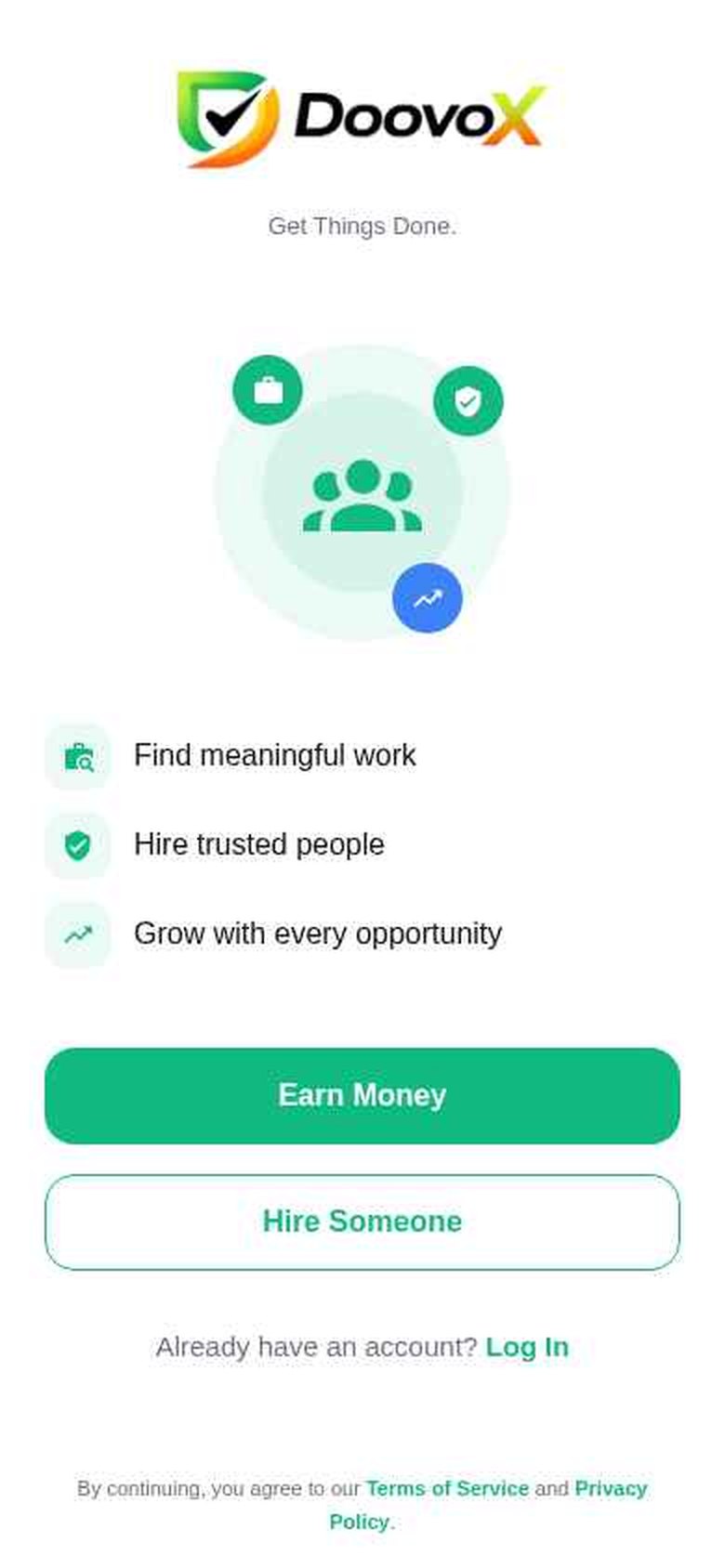
DoovoX is available in two ways, and your account works on both:
- Android: download the free app from Google Play.
- Web: open app.doovox.net in any modern browser, on a phone or a computer.
On an iPhone
There is no native iPhone app at the moment, but the web app works well in Safari, and you can add it to your Home Screen so it opens like an app:
- Open Safari and go to app.doovox.net.
- Tap the Share button (the square with an arrow).
- Scroll down and tap Add to Home Screen, then tap Add.
Create your account
When you open DoovoX for the first time, the welcome screen offers two paths: Earn Money if you want to find work, and Hire Someone if you need help. Already registered? Tap Log In.
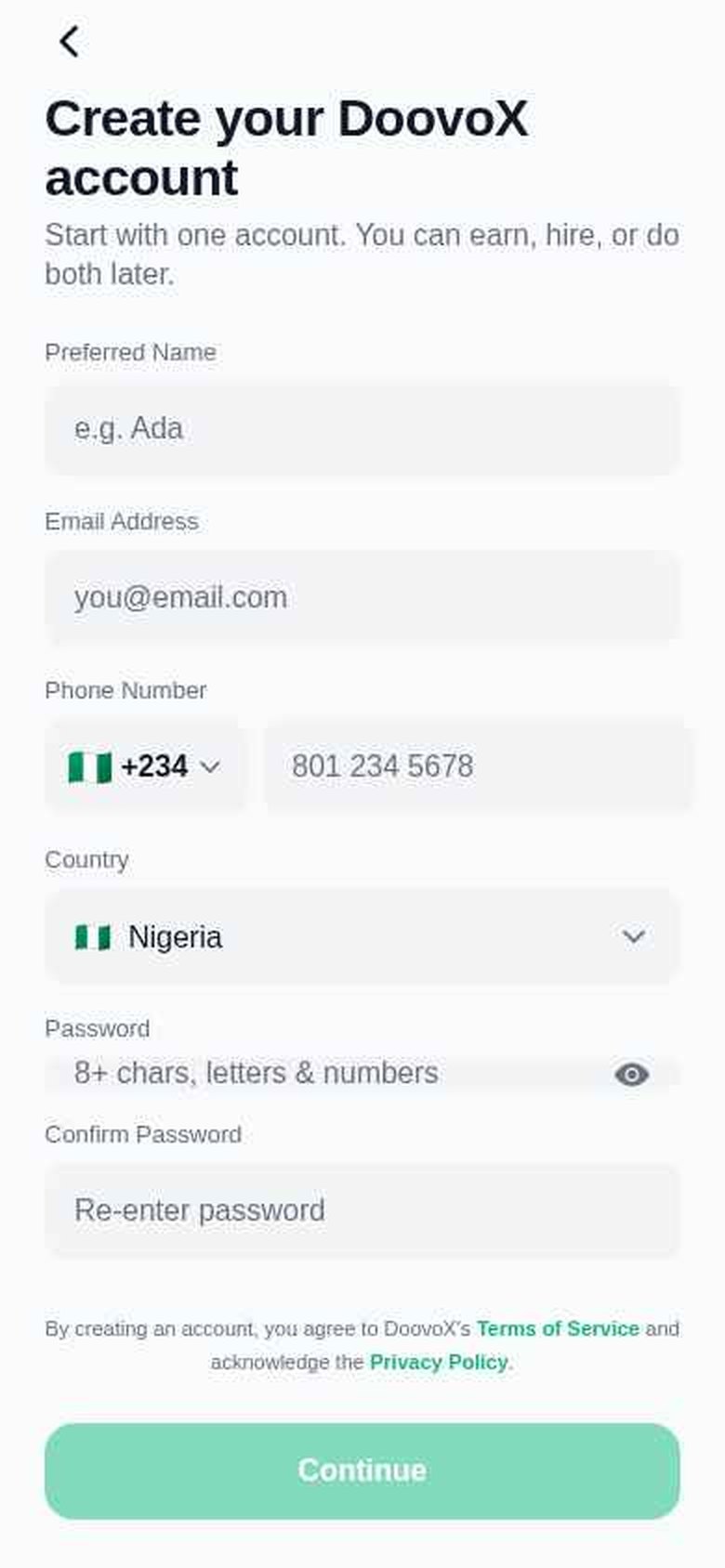
Both paths lead to the same form, because you only need one account. As the app puts it: "Start with one account. You can earn, hire, or do both later."
To sign up, enter your Preferred Name, Email Address, Phone Number (with the right country code), Country, and a Password of at least 8 characters with letters and numbers, entered twice to confirm. Tap Continue and follow the on-screen steps to finish.
Log in
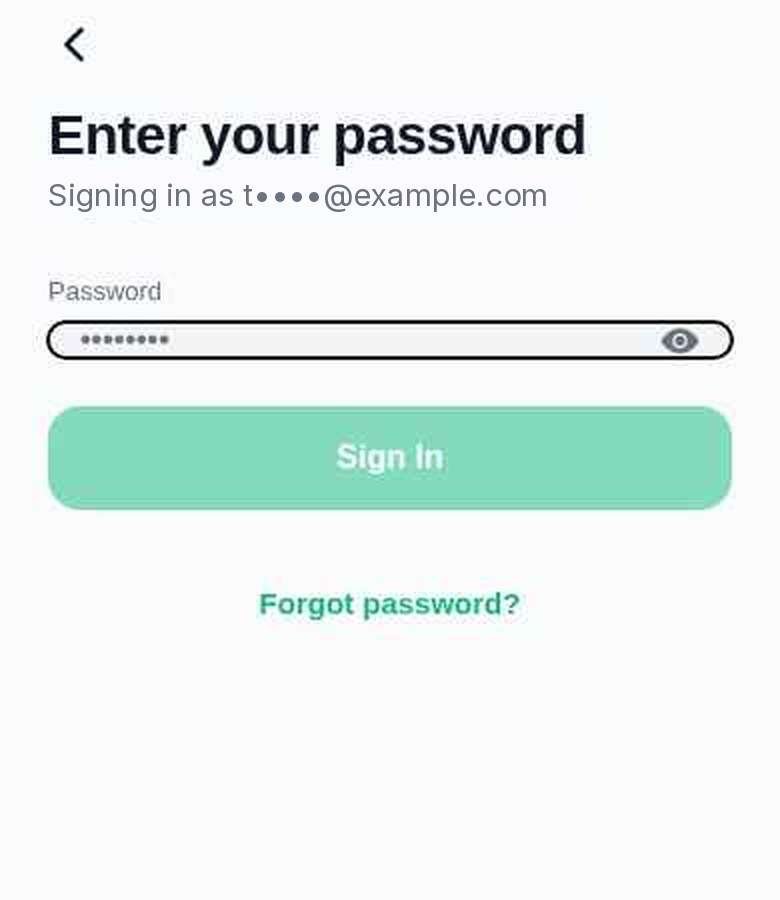
Signing in takes two short steps. Tap Log In, choose Email or Phone, enter your details and tap Continue. On the next screen, Enter your password and tap Sign In. If you've forgotten it, tap Forgot password?
For security, DoovoX notifies you when your account is signed in on a new device.
Hire mode and Earn mode
One account gives you two modes. Open the menu (the three lines at the top left of the home screen) and choose Switch mode to move between Hire and Earn. The current mode is also shown at the top of the Activity, Messages and Profile screens.
Anyone can take part as a hirer, a worker or both, subject to eligibility, local requirements and the availability of services in their area.
2. How to Request a Service on DoovoX
This section is for hirers — anyone who needs something done. For an overview, see DoovoX for Hirers.
1Open the Home Screen
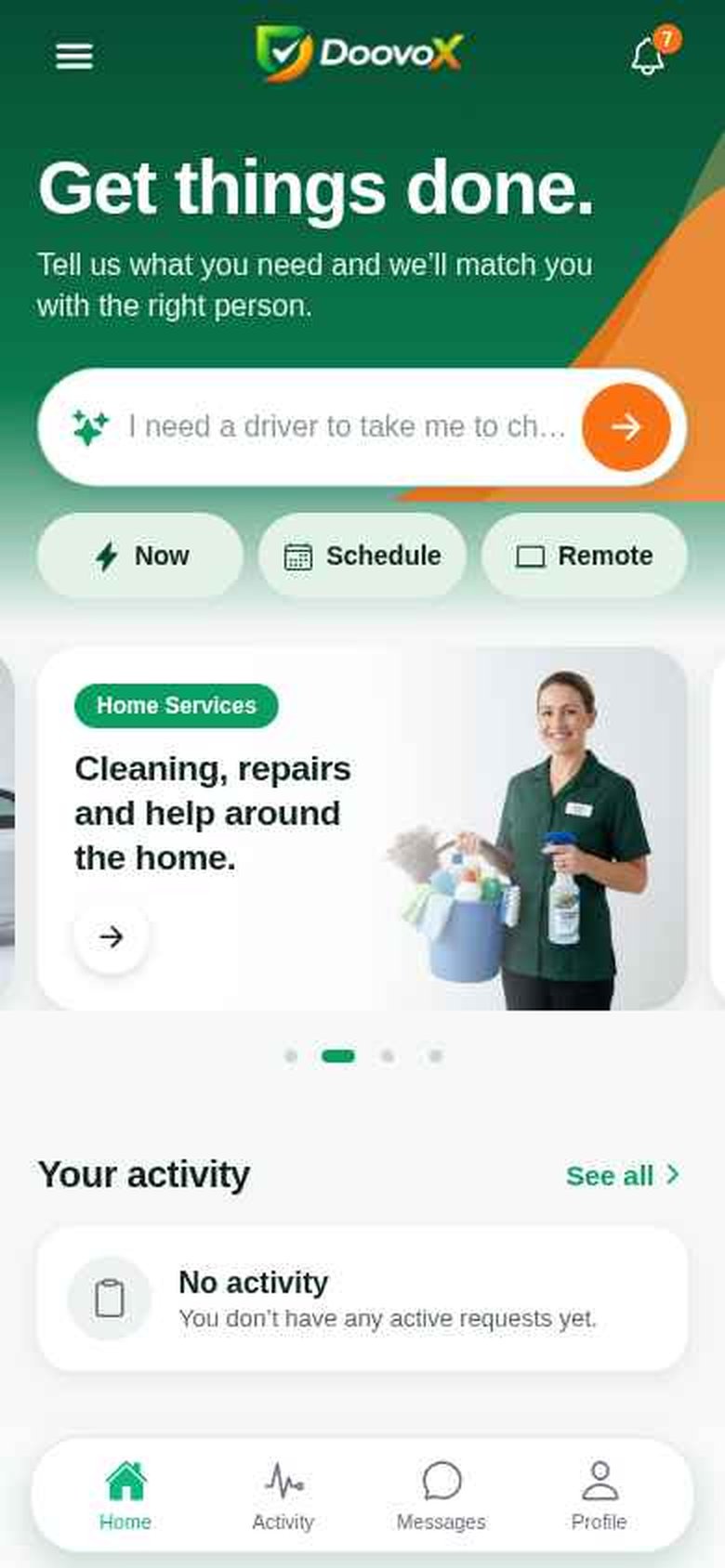
In Hire mode, your home screen opens with "Get things done. Tell us what you need and we'll match you with the right person." Underneath is the task bar, where you describe what you need.
Three buttons help you set the context before you type:
Now
For help as soon as possible.
Schedule
For a date and time later on.
Remote
For work that can be done from anywhere.
Below, you can browse service areas such as Ride & Transport, Home Services, Professional Services and Beauty & Personal Care, tap a Quick start like Clean my home or Run an errand, and follow Your activity.
The bottom bar gives you Home, Activity, Messages and Profile. The bell at the top right opens your notifications.
2Describe Your Task
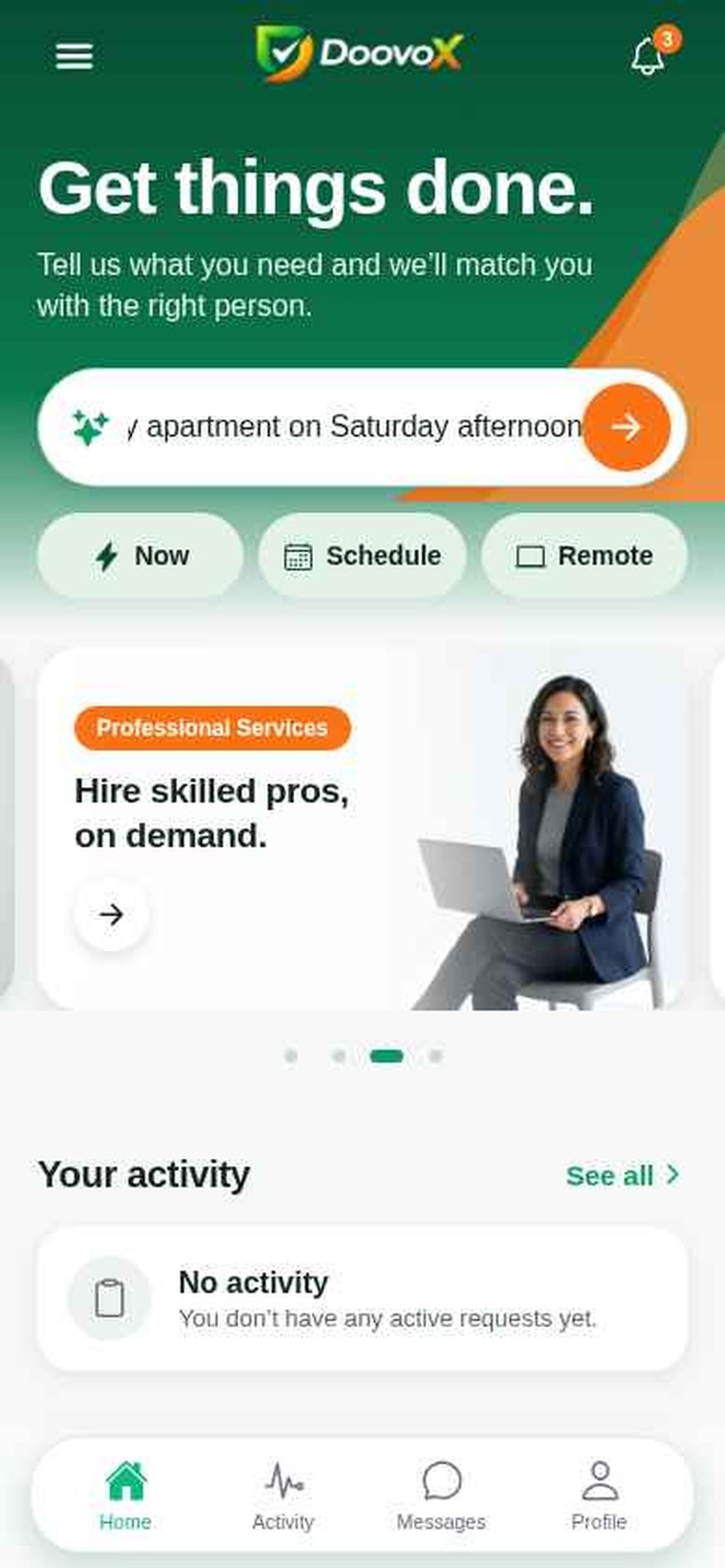
Tap the task bar and describe what you need in everyday language, then tap the orange arrow.
Clear
“I need someone to help assemble a desk at my apartment on Saturday afternoon.”
DoovoX first asks whether this is a One-time need (a single job or service) or Ongoing (work that continues over time). It then uses AI to read your description and fill in the request for you: a job title, the job details, how the work should be done, the date and the time window. Our guide on how to describe a task has tips for getting this right.
3Review the Task Details
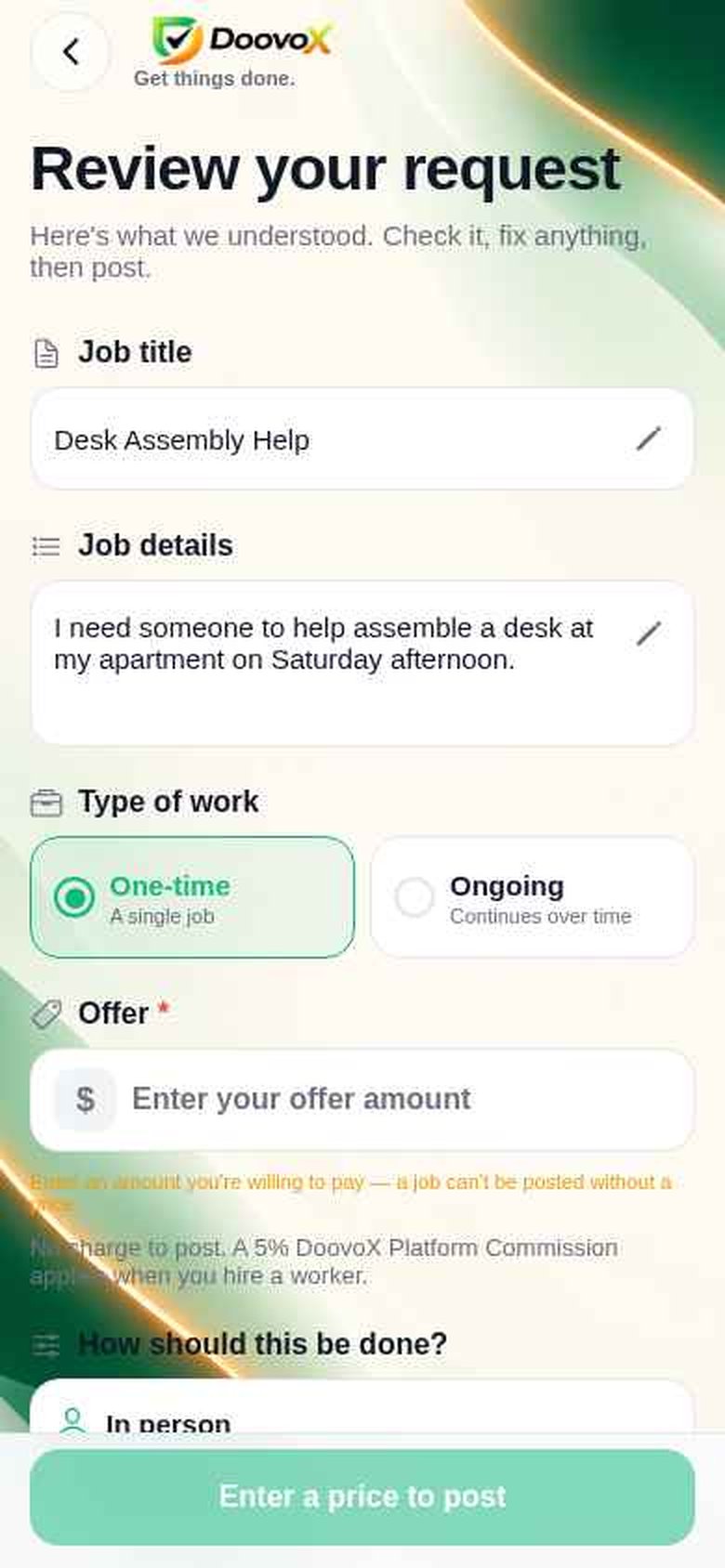
Next you'll see Review your request: "Here's what we understood. Check it, fix anything, then post." For our example, DoovoX suggested the title "Desk Assembly Help" and scheduled it for Saturday afternoon.
Check every field and tap the pencil icon to change anything:
- Job title and Job details
- Type of work — One-time or Ongoing
- Offer — what you're willing to pay
- How should this be done? — for example In person
- Job location — tap Change to correct it
- When do you need help? — Now or Schedule for later, with a date and a preferred time window
- Add photos (optional) — pictures that help workers understand the task
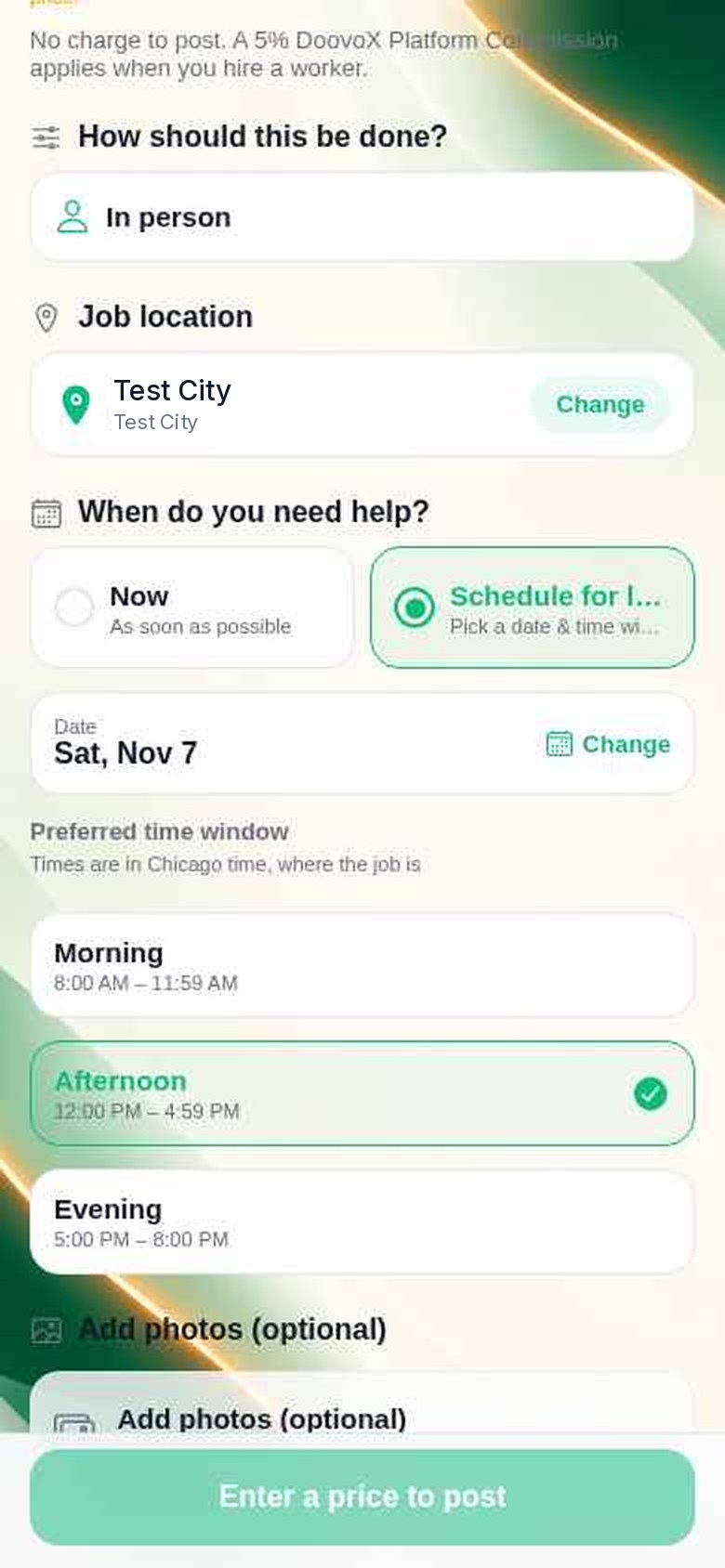
For scheduled tasks, choose a Morning, Afternoon or Evening window. The times are shown in the local time where the job takes place.
4Set Your Budget
Enter your offer. It's required — the app explains that "a job can't be posted without a price", and the button reads Enter a price to post until you add one.
Think of your offer as a starting point. Workers can accept it or come back with a counteroffer, so your first amount doesn't have to be the final price.
5Submit the Task
Once everything looks right, post your request. Posting is free: as the review screen explains, "You only pay the agreed job price plus a 5% DoovoX Platform Commission. Your payment is protected until the job is completed." The commission applies when you hire a worker. Payment processing charges are separate.
You can find your payments and receipts later under Profile → Payments.
6Review Worker Responses
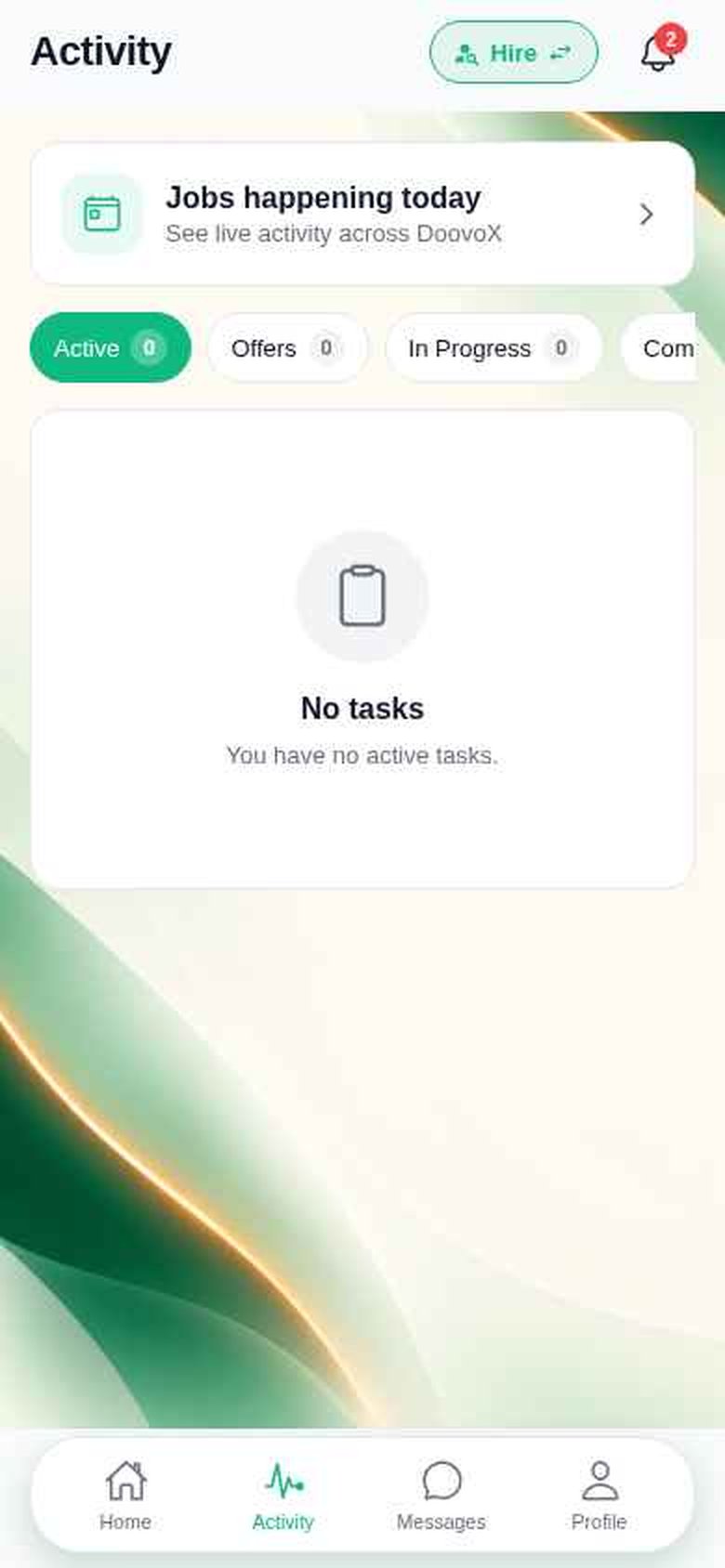
DoovoX uses your task details and location to connect your request with relevant workers. Open Activity to follow your requests. Worker responses appear under the Offers tab, alongside Active, In Progress and Completed. Our guide on choosing the right worker explains what to look for beyond price.
7Agree on Terms
Compare the offers and counteroffers you receive, then accept the one that suits you. Before work begins, make sure the scope, timing and price are clear to both of you.
8Manage the Task
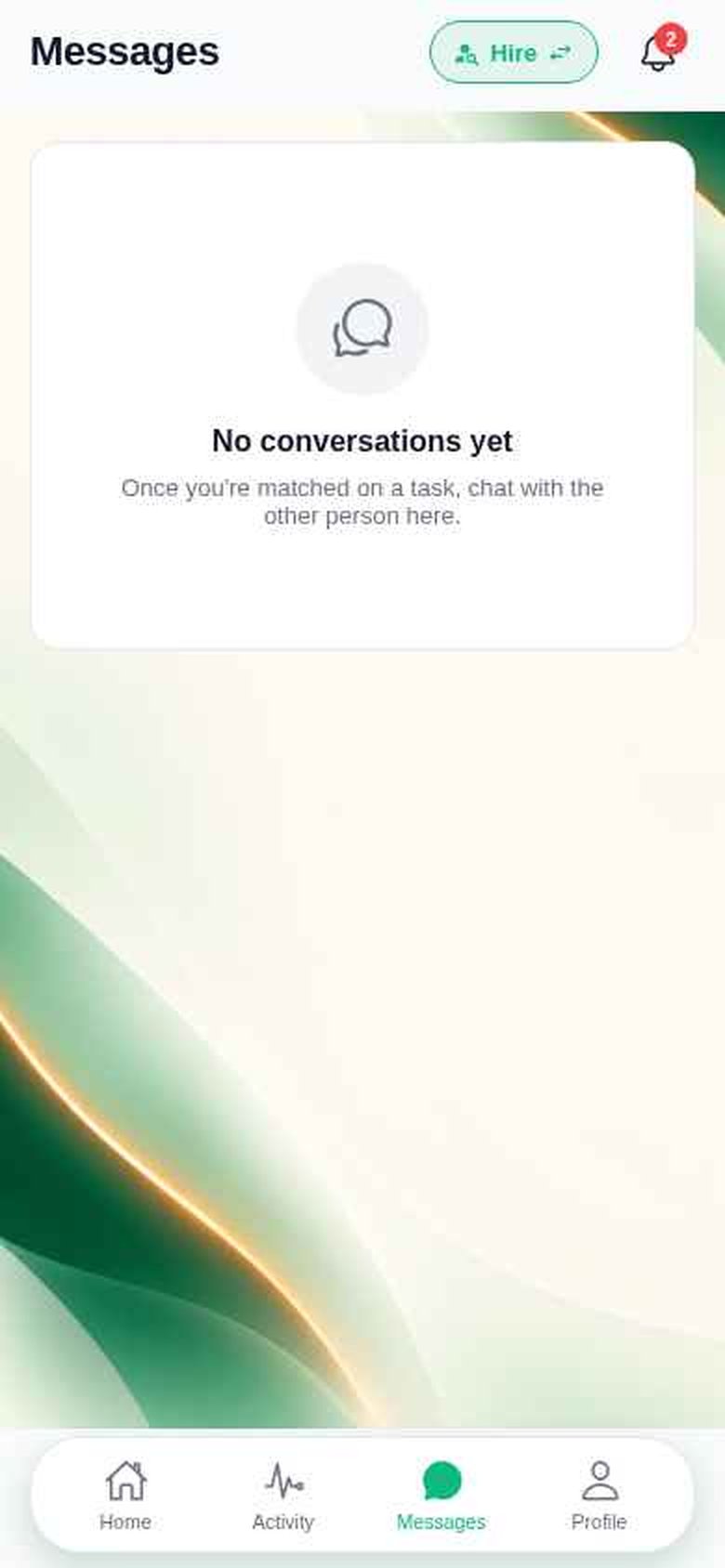
Once you're matched, use Messages to chat with your worker — "Once you're matched on a task, chat with the other person here." Follow progress under Activity → In Progress, and keep an eye on the bell for task updates.
9Complete the Task
When the job is done, it moves to Completed in your Activity. Your payment stays protected until the job is completed, then it is settled through DoovoX. Follow the prompts on the task in the app, and if something goes wrong you can raise it under Profile → My Disputes.
3. How to Find Opportunities and Earn with DoovoX
This section is for workers — anyone who wants to earn with their skills. Read more on DoovoX for Workers.
Negotiate your price. Choose your jobs.
1Set Up Your Worker Profile
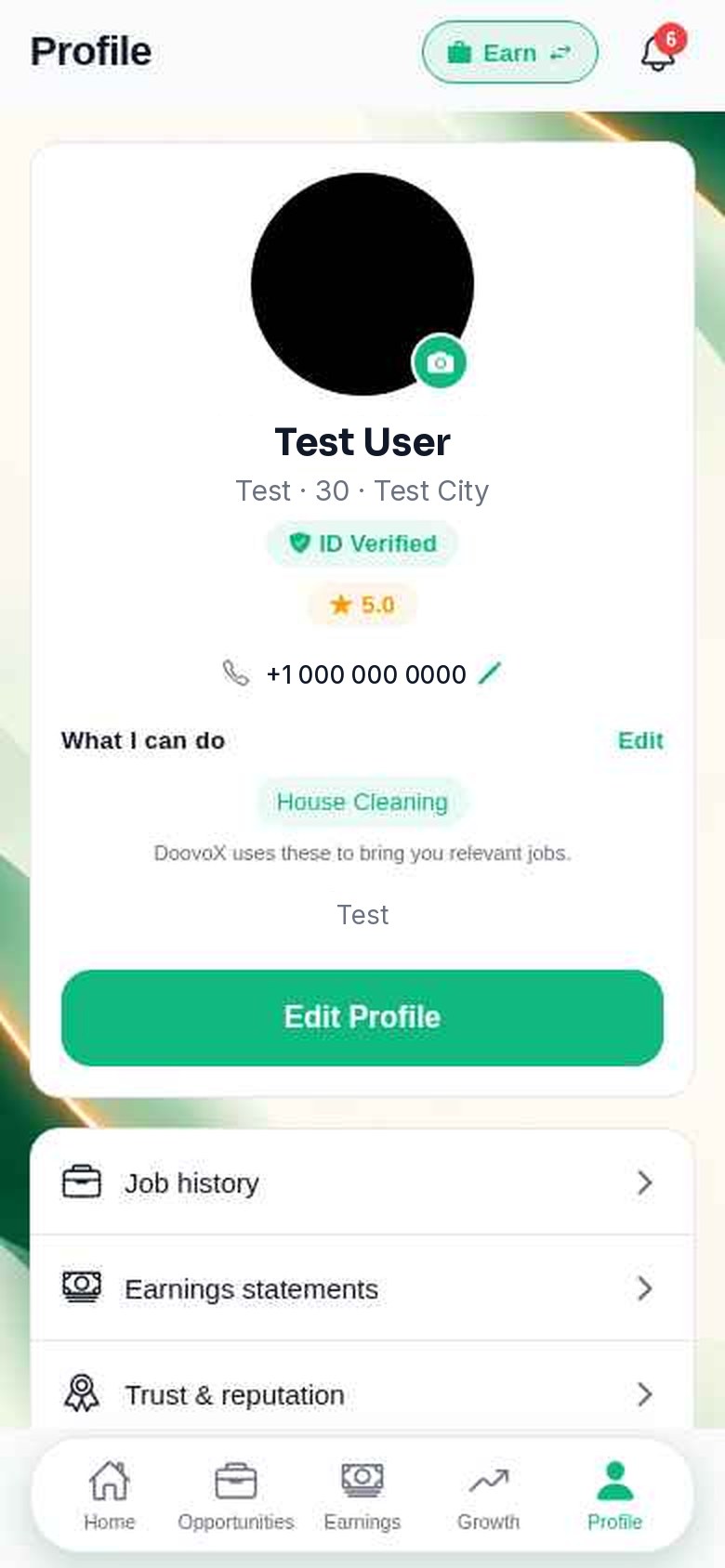
Switch to Earn mode and open Profile. Under What I can do, tap Edit to add your skills — "DoovoX uses these to bring you relevant jobs." Your profile also shows your verification status, such as ID Verified, and your rating. Tap Edit Profile to update your details.
Your profile menu also includes Job history, Earnings statements, Trust & reputation, Invite friends, Help Center, My disputes and Settings.
2Review Opportunities
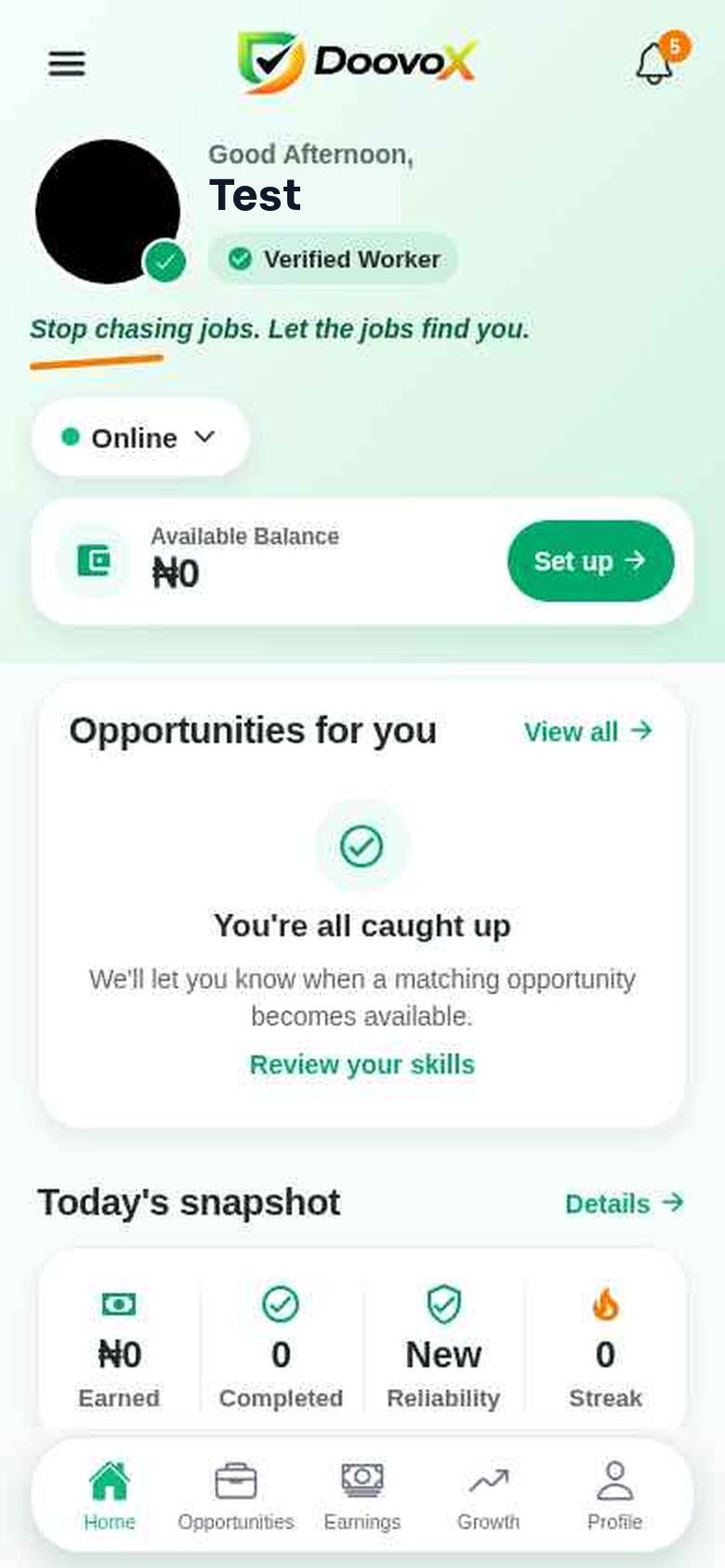
Your Earn home screen greets you with "Stop chasing jobs. Let the jobs find you." Set your status to Online — as the app's tip says, "Stay online to receive matching opportunities." Matching jobs appear under Opportunities for you. If there's nothing new, you'll see "You're all caught up", with a link to Review your skills.
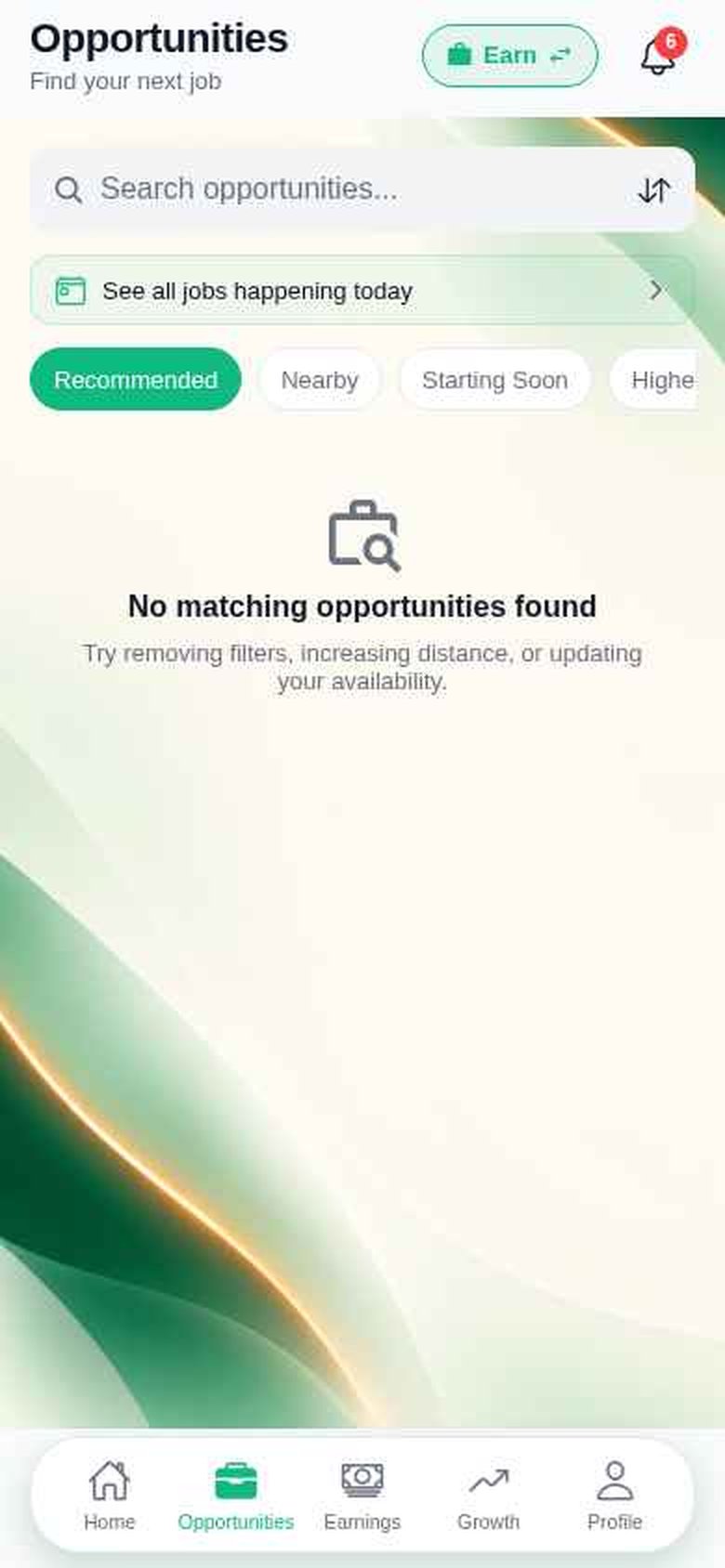
Tap Opportunities in the bottom bar to look further. You can search, sort, open See all jobs happening today, and filter by Recommended, Nearby, Starting Soon, Highest Paying or Saved. Task offers and reminders also arrive in your notifications under Task Updates.
3Understand the Task
Before you respond, open the job and read the details: what needs doing, where, when, the amount offered, and any requirements or photos. If something is unclear, ask before you commit.
4Accept, Decline, or Counteroffer
You always have three choices:
Accept
Take the job at the offered amount.
Decline
Pass on jobs that don't suit you — no obligation.
Counteroffer
Propose a price that reflects the time, skill and costs involved.
A reasonable counteroffer with a short explanation is professional, not pushy. See why negotiating your price matters.
5Agree on the Task
If the hirer accepts your offer or counteroffer, the job is yours. Check that you both understand the scope, timing and price before you begin.
6Complete the Work
Use Messages to stay in touch with the hirer, turn up on time, and follow the prompts in the app as the job progresses. Your Job history keeps a record of the work you've done.
7Understand Your Earnings
Workers pay a standard 10% commission on the agreed task price. Payment processing charges are separate.
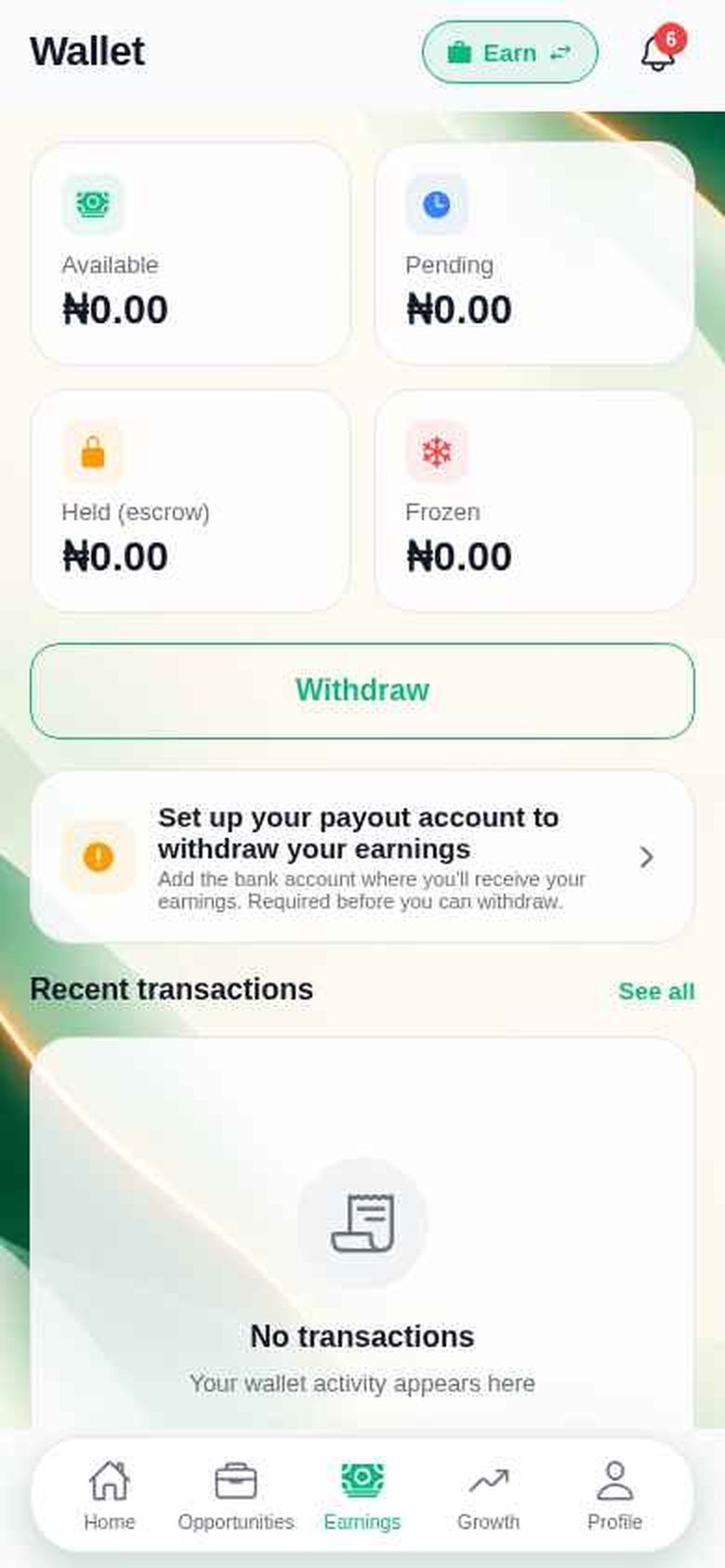
Tap Earnings to open your Wallet. It shows your Available, Pending, Held (escrow) and Frozen balances, plus your Recent transactions. To take money out, first set up your payout account — the bank account where you'll receive your earnings. This is required before you can use Withdraw. Payout options depend on what is supported where you live.
8Manage Your Activity
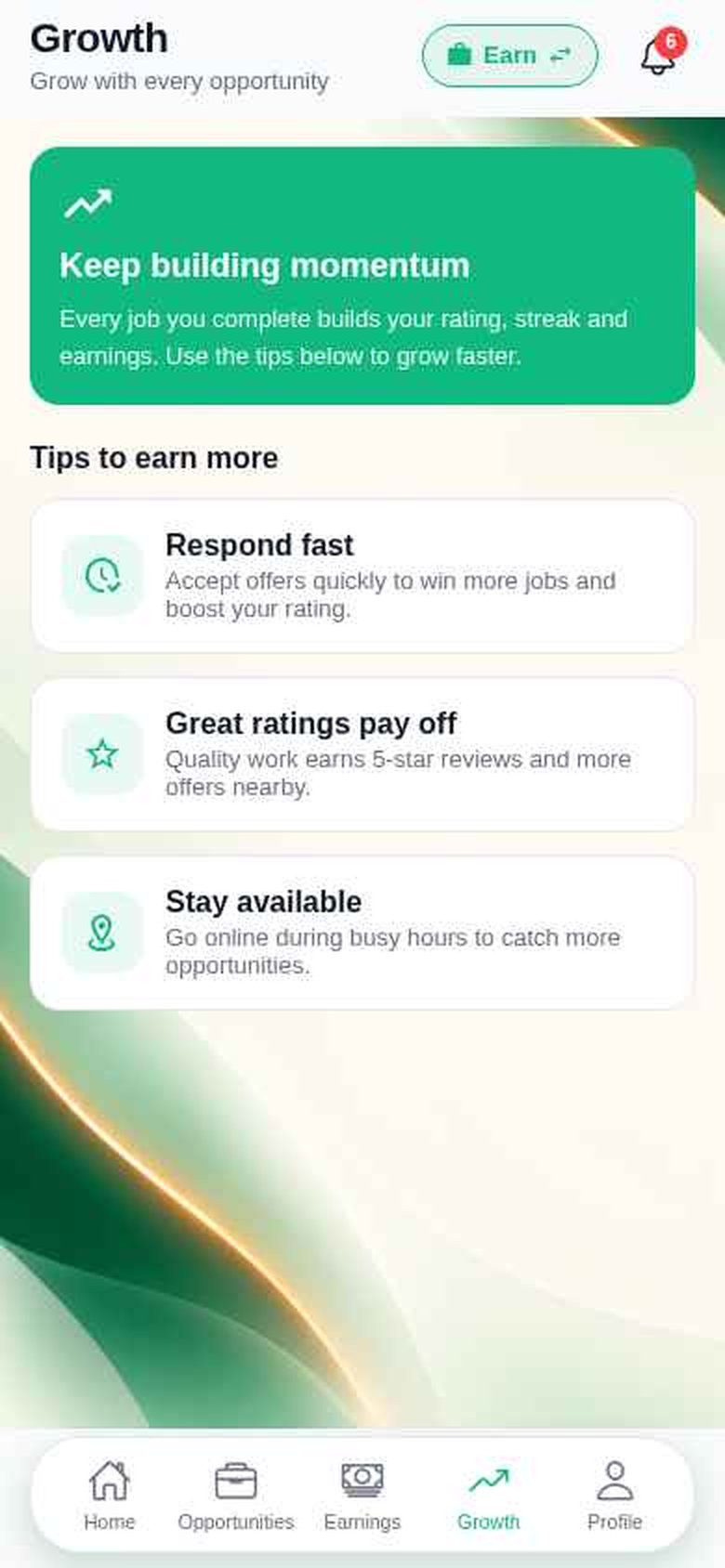
Today's snapshot on your home screen tracks what you've Earned, jobs Completed, your Reliability and your Streak. The Growth tab shares tips to earn more: respond fast, deliver work that earns great ratings, and stay available during busy hours.
4. Using DoovoX Wherever You Are
DoovoX is a global marketplace. Hirers and workers can take part from different countries, subject to local eligibility, supported payment methods and the services actually available in their area. Workers are not restricted to any one country.
On-site tasks
Need a worker physically present, like repairs, cleaning or moving help.
Remote tasks
Can be done from anywhere, like design, research or admin support.
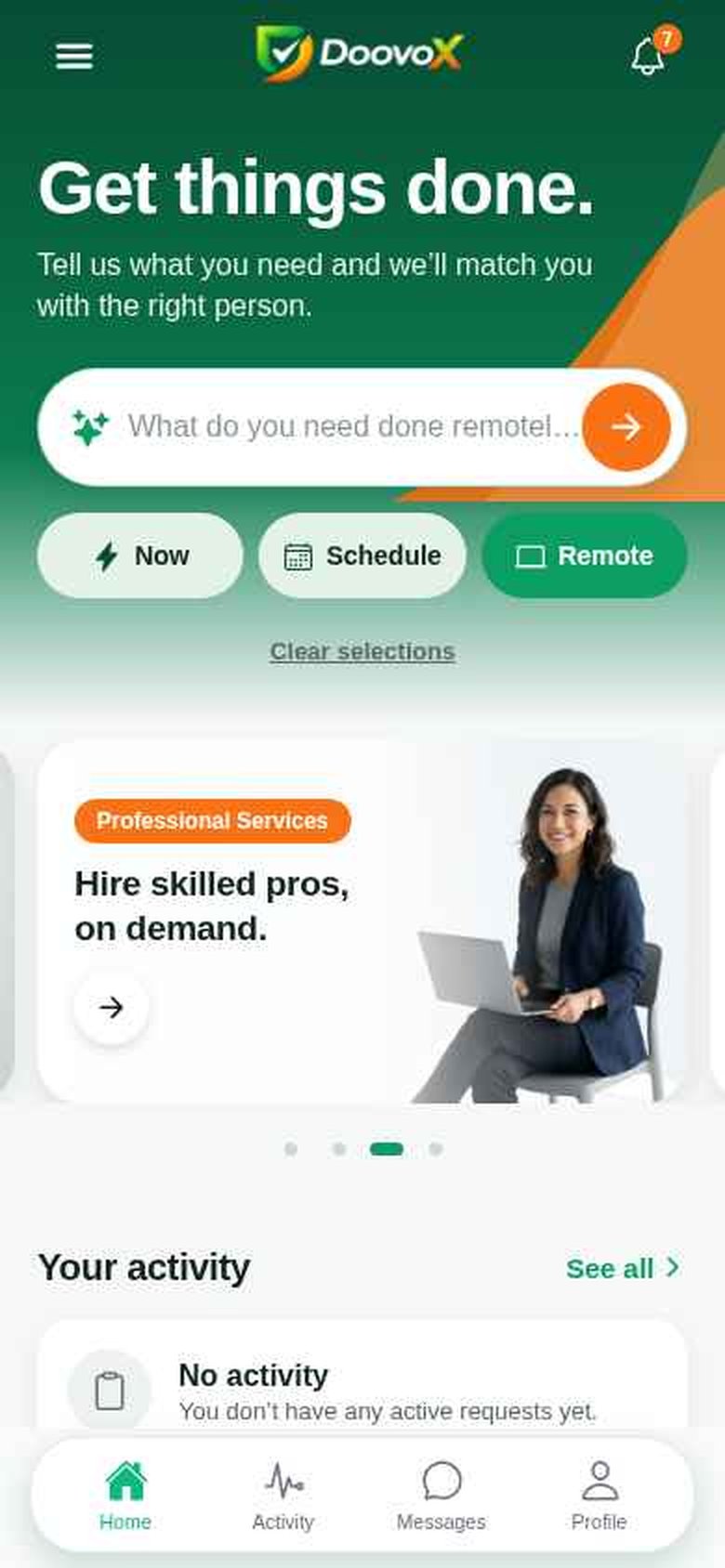
For an on-site task, set the right job location — DoovoX uses it to find relevant nearby workers, and shows scheduled times in the job's local time. For remote work, tap Remote on the home screen and the task bar asks, "What do you need done remotely?"
Amounts are shown in the currency the app uses for your account and location. Don't assume automatic currency conversion. Read more in what kinds of tasks can be done remotely.
5. Tips for Getting the Most Out of DoovoX
For hirers
- Describe the outcome you want, not just a label.
- Set a realistic budget, and be open to fair counteroffers.
- Double-check the job location and time window.
- Add photos when they help explain the task.
For workers
- Keep What I can do accurate and up to date.
- Stay Online when you're ready for work.
- Read every requirement before responding, and make reasonable counteroffers.
- Respond quickly, communicate clearly and deliver what you agreed.
Frequently Asked Questions
Is DoovoX free to download?
Yes. The Android app is free on Google Play, and the web app at app.doovox.net is free to use. Posting a task is free; commissions apply when a task is agreed.
Can I use DoovoX outside Nigeria?
Yes. DoovoX is open to hirers and workers internationally — you choose your country and phone code when you sign up. What you can do depends on local eligibility, supported payment methods and the services available in your area.
Can I be both a hirer and a worker?
Yes. One account lets you switch between Hire mode and Earn mode at any time.
Can workers negotiate prices?
Yes. Workers can accept an offer, decline it, or send a counteroffer.
How are platform commissions calculated?
Hirers pay a 5% DoovoX Platform Commission and workers pay a 10% commission, both on the agreed task price. Payment processing charges are separate.
Can I use DoovoX on an iPhone?
Yes, through Safari at app.doovox.net — you can add it to your Home Screen. There is no native iPhone app at the moment.
How do I contact support?
In the app, go to Profile → Help Center or Contact Support / Report. You can also visit our Help Center or use the contact form.
When will public task operations begin?
DoovoX is live now. You can create an account and post or respond to tasks today, subject to availability in your area.
The bottom line
Whether you need something done or want to put your skills to work, it starts the same way: create one account, tell DoovoX what you need or what you can do, and take it from there. Download DoovoX on Google Play or open app.doovox.net. See also How It Works.
Get things done. Wherever you are.
Share this idea
Get things done. Wherever you are.
Hire help or earn from your skills. DoovoX is available on Android and on the web.
Need something done?
Describe your task, compare offers and choose who helps. Posting a task is free.
Put your skills to work.
Create your worker profile, choose the tasks that suit you and agree your price.